研发效能 分享:powershell + ffmpeg + windows 任务计划程序实现多时间段定时录屏

1、背景
需要给客户提供录屏 + 整理数据,现场不能远程,人员留守录屏比较麻烦,考虑放一台电脑在那里定时间录屏,将需求告诉 AI,推荐方案之后采用 powershell + ffmpeg + windows 任务计划程序实现多时间段定时长录屏
2、构成
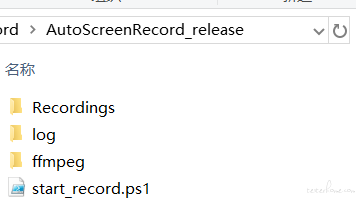
以下放在一个文件夹
start_record.ps1——powshell 脚本
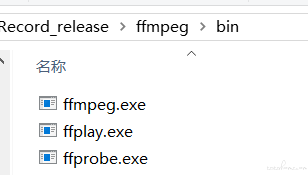
ffmpeg 文件夹——https://ffmpeg.org/download.html#build-windows下载后解压重命名
Recordings 文件夹——自动生成录屏文件文件夹,自动生成
log 文件夹——自动生成脚本执行 log 和 ffmpeg log
3、效果
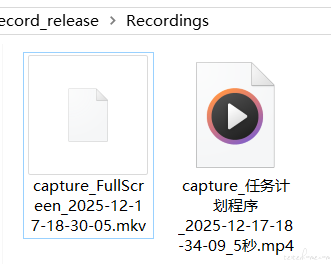
如已打开指定窗口,会自动切换到对应窗口只录制窗口,否则录制全屏,右下角显示录制状态、剩余时长、全屏还是软件窗口
录制过程中为 mkv,录制完成自动转换为 mp4 并删除 mkv


• 修改脚本 ps1 中 $WindowTitle = "示例脚本窗口"指定要录屏软件窗口
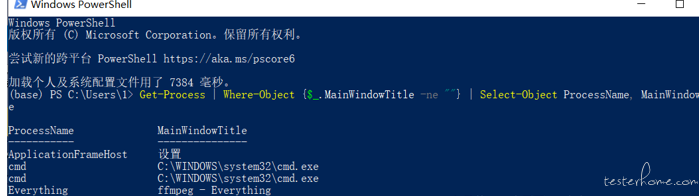
• 如何获取窗口标题?打开那个软件,然后打开 PowerShell,输入 Get-Process | Where-Object {$_.MainWindowTitle -ne ""} | Select-Object MainWindowTitle,从列表中找到并复制准确的标题。
1) 手动执行:
打开 powershell ,切换到 AutoScreenRecord_release 路径,.\start_record.ps1 60 执行,60 为要录制的秒数
2)windows 计划程序
配置 Windows 任务计划程序
打开任务计划程序:
在开始菜单搜索 “任务计划程序” 并打开。
创建脚本运行任务
右侧点击 “创建基本任务...”。
名称:上午录屏 (08:30),描述随便写()。
触发器:选择 “每天”,设置开始时间为 08:30:00。(有点延迟提前 2 分钟避免延迟)
操作:选择 “启动程序”。
程序或脚本:直接输入 powershell.exe 即可,因为它是系统程序,不需要带路径。
添加参数:
-ExecutionPolicy Bypass -WindowStyle Hidden -File "D:\Desktop\AutoScreenRecord\start_record.ps1" 2000
其中" D:\Desktop\AutoScreenRecord\start_record.ps1"为 ps 脚本路径, 1800 为录屏时长(30 分钟 x 60 秒,),根据实际需求替换,时长可适当增大。几分钟
起始于(可选):这里填写你的 AutoScreenRecord 文件夹的完整路径,例如 D:\Desktop\AutoScreenRecord。这能确保脚本在正确的目录下运行。
勾选 “当单击完成时,打开此任务属性的对话框”,然后点击 “完成”。
设置任务的高级属性
选中任务鼠标右键在弹出的属性窗口中,切换到 “常规” 选项卡。
安全选项:选择 “不管用户是否登录都要运行”,并勾选 “不存储密码”。(有问题 ffmpeg 无法访问图形界面失败),因此选择 “仅在用户登录时运行”,不选这个
(默认有一般不用操作)点击 “更改用户或组...”。在弹出的窗口中,输入你的用户名(比如 LAPTOP-5BHCOCIB\1),然后点击 “检查名称”,系统会自动补全。点击 “确定”。
勾选上 “仅在用户登录时运行”
勾选 “使用最高权限运行”。
配置为:“Windows 10” 或 “Windows Server 2016”。
点击 “确定”。
创建创建其他时间段录制的任务计划
如何修改任务名称
在中间的任务列表中,找到你想要重命名的任务。
选中这个任务,然后按 Ctrl + C 复制它。
在空白处按 Ctrl + V 粘贴。你会立刻在列表中看到一个名为 xx 副本 的新任务。
重命名新任务:
右键点击这个 “副本” 任务,选择 “属性”。
在弹出的 “常规” 选项卡里,你会发现顶部的 “名称” 输入框现在是可以编辑的!
把它改成你想要的新名字,例如 上午录屏_08-30。
点击 “确定” 保存。
删除旧任务:
回到任务列表,找到原来的那个旧任务(ps 录屏 1630_1632)。
右键点击它,选择 “删除”。
现在,你就拥有了一个新名字的、功能完全相同的任务了
项目结束后记得删除这些任务计划避免不必要的持续录屏占用存储
4、start_record.ps1 脚本内容
# ========================================
#   自动定时录屏脚本 (最终稳定版)
#   功能: 智能录制指定窗口或全屏 -> 显示录制状态 -> 自动转MP4 -> 删除MKV
#   优化: 1. 智能检测窗口,找不到则录全屏
#         2. 隐藏窗口标题栏,只显示中央的计时文字
#         3. 使用已验证有效的 while+DoEvents+内联CancelKeyPress 清理
#         4. 隐藏 ffmpeg 窗口,并将其输出重定向到 log 文件夹
#         5. 修复了进程退出码检查的时序问题
#         6. 【新增】双击直接运行(使用默认时长)
#         7. 【新增】运行时最小化 PowerShell 窗口
#         8. 【新增】找到目标窗口时,将其显示并激活
# ========================================
# --- 【核心修改点 0】在脚本开头绕过执行策略 ---
Set-ExecutionPolicy Bypass -Scope Process
# --- 用户配置区 (请修改这里) ---
# 设置要录制的窗口的标题 (必须完全匹配,完美支持中文和特殊字符)
 $WindowTitle = "示例软件窗口"
# 设置双击运行时的默认录制时长(秒)
 $DefaultDuration = 60
# -----------------------------

# --- 【核心修改点 1】引入 Windows API,用于控制窗口 ---
# 【关键修复】添加检查,防止类型重复定义
if (-not ("Win32Api.User32" -as [type])) {
    Write-Host "正在加载 Windows API 类型..."
    Add-Type -Name User32 -Namespace Win32Api -MemberDefinition @"
[DllImport("user32.dll")]
[return: MarshalAs(UnmanagedType.Bool)]
public static extern bool ShowWindow(IntPtr hWnd, int nCmdShow);

[DllImport("user32.dll")]
[return: MarshalAs(UnmanagedType.Bool)]
public static extern bool SetForegroundWindow(IntPtr hWnd);

[DllImport("kernel32.dll")]
public static extern IntPtr GetConsoleWindow();
"@
}
else {
    Write-Host "Windows API 类型已存在,跳过加载。"
}


# --- 【核心修改点 2】处理参数,支持双击直接运行 ---
 $Duration = $args[0]
if (-not $Duration -or $Duration -eq 0) {
    Write-Host "未提供时长参数,将使用默认时长 $DefaultDuration 秒。" -ForegroundColor Yellow
    $Duration = $DefaultDuration
}

# --- 【核心修改点 3】最小化当前的 PowerShell 窗口 ---
try {
    $consoleHandle = [Win32Api.User32]::GetConsoleWindow()
    if ($consoleHandle -ne [IntPtr]::Zero) {
        # 2 = SW_MINIMIZE
        [Win32Api.User32]::ShowWindow($consoleHandle, 2) | Out-Null
    }
}
catch {
    Write-Host "无法最小化 PowerShell 窗口,但这不影响录制功能。" -ForegroundColor Yellow
}


# --- [日志记录] 开始记录所有操作到日志文件 ---
 $ScriptDir = Split-Path -Parent $MyInvocation.MyCommand.Definition

# --- 定义并创建 log 文件夹 ---
 $LogDir = Join-Path $ScriptDir "log"
if (-not (Test-Path $LogDir)) {
    New-Item -Path $LogDir -ItemType Directory -Force | Out-Null
}
 $LogPath = Join-Path $LogDir "log_$(Get-Date -Format 'yyyy-MM-dd_HH-mm-ss')"
Start-Transcript -Path $LogPath -Append
Write-Host "=== Script started at $(Get-Date) ==="
# --- [日志记录结束] ---

# --- 脚本内部路径设置 (自动获取,无需修改) ---
try {
    $FFmpegExe = Join-Path $ScriptDir "ffmpeg\bin\ffmpeg.exe"
    $OutputDir = Join-Path $ScriptDir "Recordings"
}
catch {
    Write-Host "ERROR: Failed to determine script directory. $_" -ForegroundColor Red
    Start-Sleep -Seconds 30
    exit 1
}

# --- 检查FFmpeg是否存在 ---
if (-not (Test-Path $FFmpegExe)) {
    Write-Host "ERROR: FFmpeg not found at '$FFmpegExe'. Please check the ffmpeg folder." -ForegroundColor Red
    Start-Sleep -Seconds 30
    exit 1
}

# --- 检查输出目录是否存在,不存在则创建 ---
if (-not (Test-Path $OutputDir)) {
    Write-Host "Output directory not found. Creating '$OutputDir'..."
    New-Item -Path $OutputDir -ItemType Directory -Force | Out-Null
}

# --- 使用纯PowerShell检查目标窗口是否存在 ---
 $targetProcess = Get-Process | Where-Object { $_.MainWindowTitle -eq $WindowTitle } -ErrorAction SilentlyContinue
 $windowExists = $null -ne $targetProcess

 $Timestamp = Get-Date -Format "yyyy-MM-dd-HH-mm-ss"
$RecordObject = "全屏"
if ($windowExists) {
    Write-Host "[$(Get-Date -Format 'HH:mm:ss')] Target window '$WindowTitle' found. Will record window only."
    $MkvFilename = Join-Path $OutputDir "capture_${WindowTitle}_${Timestamp}.mkv"
    $Mp4Filename = Join-Path $OutputDir "capture_${WindowTitle}_${Timestamp}_${Duration}秒.mp4"
    $RecordSource = "title=$WindowTitle"
    $RecordObject = "软件窗口"

    # --- 【核心修改点 4】找到目标窗口后,将其显示并激活 ---
    try {
        if ($targetProcess.MainWindowHandle -ne [IntPtr]::Zero) {

            # --- 关键修复:临时恢复自身窗口以获取前台权限 ---
            $consoleHandle = [Win32Api.User32]::GetConsoleWindow()
            if ($consoleHandle -ne [IntPtr]::Zero) {
                # 9 = SW_RESTORE,恢复窗口
                [Win32Api.User32]::ShowWindow($consoleHandle, 9) | Out-Null
                Start-Sleep -Milliseconds 200 # 短暂等待,确保窗口已恢复并获得焦点
            }

            # --- 现在可以可靠地激活目标窗口了 ---
            # 9 = SW_RESTORE,确保目标窗口也不是最小化状态
            [Win32Api.User32]::ShowWindow($targetProcess.MainWindowHandle, 9) | Out-Null
            $hwnd = $targetProcess.MainWindowHandle
            [Win32Api.User32]::SetForegroundWindow($hwnd)

            Write-Host "[$(Get-Date -Format 'HH:mm:ss')] 目标窗口已显示并激活。" -ForegroundColor Green

            # --- 再次将自身最小化,保持界面干净 ---
            if ($consoleHandle -ne [IntPtr]::Zero) {
                # 2 = SW_MINIMIZE,最小化窗口
                [Win32Api.User32]::ShowWindow($consoleHandle, 2) | Out-Null
            }

            # 【关键修复】让脚本休眠,确保目标窗口完全占据前台
            # Write-Host "[$(Get-Date -Format 'HH:mm:ss')] 等待目标窗口稳定,1秒后开始录制..." -ForegroundColor Gray
            # Start-Sleep -Seconds 1
        }
    }
    catch {
        Write-Host "[$(Get-Date -Format 'HH:mm:ss')] 激活窗口时发生错误: $_" -ForegroundColor Yellow
    }
}
else {
    Write-Host "[$(Get-Date -Format 'HH:mm:ss')] Target window '$WindowTitle' not found. Will record full screen."
    $MkvFilename = Join-Path $OutputDir "capture_FullScreen_${Timestamp}.mkv"
    $Mp4Filename = Join-Path $OutputDir "capture_FullScreen_${Timestamp}_${Duration}秒.mp4"
    $RecordSource = "desktop"
}

# --- 创建录制状态显示窗口 ---
Add-Type -AssemblyName System.Windows.Forms
Add-Type -AssemblyName System.Drawing

 $global:RecordingForm = New-Object System.Windows.Forms.Form
 $global:RecordingForm.Text = ""
 $global:RecordingForm.Size = New-Object System.Drawing.Size(140, 40)
 $global:RecordingForm.StartPosition = "Manual"
 $global:RecordingForm.FormBorderStyle = "None"
 $global:RecordingForm.TopMost = $true
 $global:RecordingForm.ShowInTaskbar = $false
 $global:RecordingForm.BackColor = [System.Drawing.Color]::Black
 $global:RecordingForm.Opacity = 0.4
 $global:RecordingForm.Font = New-Object System.Drawing.Font("Microsoft YaHei", 8)

 $screenWidth = [int][System.Windows.Forms.Screen]::PrimaryScreen.WorkingArea.Width
 $screenHeight = [int][System.Windows.Forms.Screen]::PrimaryScreen.WorkingArea.Height
 $global:RecordingForm.Location = New-Object System.Drawing.Point(($screenWidth - 145), ($screenHeight - 40))

 $global:timeLabel = New-Object System.Windows.Forms.Label
 $global:timeLabel.Location = New-Object System.Drawing.Point(5, 5)
 $global:timeLabel.Size = New-Object System.Drawing.Size(140, 40)
 $global:timeLabel.Text = "${RecordObject}录制: 0/$Duration"
 $global:timeLabel.ForeColor = [System.Drawing.Color]::White
 $global:timeLabel.TextAlign = "MiddleCenter"
 $global:RecordingForm.Controls.Add($global:timeLabel)

# 显示录制状态窗口
 $global:RecordingForm.Show() | Out-Null

# --- 第1步: 执行录制 ---
Write-Host "[$(Get-Date -Format 'HH:mm:ss')] Starting recording for $Duration seconds..."
Write-Host "[$(Get-Date -Format 'HH:mm:ss')] MKV file will be saved to: '$MkvFilename'"

# 使用数组来传递参数,这是最安全、最可靠的方式
 $RecordArgs = @(
    "-t", $Duration,
    "-f", "gdigrab",
    "-framerate", "15",
    "-i", $RecordSource,
    "-c:v", "libx264",
    "-preset", "ultrafast",
    "-crf", "23",
    $MkvFilename
)

# --- 在启动前后获取进程列表,找出新 PID ---
 $ffmpegPidsBefore = Get-Process -Name "ffmpeg" -ErrorAction SilentlyContinue | Select-Object -ExpandProperty Id

# --- 定义 ffmpeg 输出日志文件到 log 文件夹 ---
 $FfmpegOutputLog = Join-Path $LogDir "ffmpeg_record_${Timestamp}"

# --- 启动FFmpeg进程,隐藏窗口并重定向输出 ---
 $Process = Start-Process -FilePath $FFmpegExe -ArgumentList $RecordArgs -WindowStyle Hidden -RedirectStandardError $FfmpegOutputLog -PassThru -ErrorAction Stop

 $ffmpegPidsAfter = Get-Process -Name "ffmpeg" -ErrorAction SilentlyContinue | Select-Object -ExpandProperty Id
 $global:NewFfmpegPid = ($ffmpegPidsAfter | Where-Object { $_ -notin $ffmpegPidsBefore }) | Select-Object -First 1

if (-not $global:NewFfmpegPid) {
    Write-Host "ERROR: Failed to identify the newly started FFmpeg process." -ForegroundColor Red
    exit 1
}
Write-Host "[$(Get-Date -Format 'HH:mm:ss')] FFmpeg recording process started with PID: $($global:NewFfmpegPid)"
Write-Host "[$(Get-Date -Format 'HH:mm:ss')] FFmpeg output is being logged to: '$FfmpegOutputLog'"

# --- 更新录制状态的 Timer ---
 $global:startTime = Get-Date
 $global:timer = New-Object System.Windows.Forms.Timer
 $global:timer.Interval = 1000 # 1秒更新一次

 $global:timer.Add_Tick({
    $elapsed = (Get-Date) - $global:startTime
    $elapsedSeconds = [int]$elapsed.TotalSeconds

    if ($elapsedSeconds -ge $Duration) {
        $global:timer.Stop()
        $global:timeLabel.Text = "录制完成,处理中..."
        $global:RecordingForm.Refresh()
        $global:RecordingFinished = $true
        return
    }

    $global:timeLabel.Text = "${RecordObject}录制: {0}/{1}" -f $elapsedSeconds, $Duration
    $global:RecordingForm.Refresh()
})
 $global:timer.Start()

# --- 【核心】注册 Ctrl+C 事件,并内联所有清理逻辑 ---
 $ctrlCAction = {
    Write-Host "`n[$(Get-Date -Format 'HH:mm:ss')] 检测到用户中断,正在清理资源..." -ForegroundColor Yellow

    # 1. 停止计时器
    if ($global:timer) {
        $global:timer.Stop()
    }

    # 2. 关闭状态窗口
    if ($global:RecordingForm -and !$global:RecordingForm.IsDisposed) {
        $global:RecordingForm.Close()
    }

    # 3. 终止 ffmpeg 进程
    if ($global:NewFfmpegPid) {
        try {
            $processToKill = Get-Process -Id $global:NewFfmpegPid -ErrorAction Stop
            if (!$processToKill.HasExited) {
                Write-Host "正在终止 FFmpeg 进程 (PID: $($global:NewFfmpegPid))..."
                $processToKill.Kill()
            }
        }
        catch {
            Write-Host "未找到 PID 为 $($global:NewFfmpegPid) 的 FFmpeg 进程,可能已自行退出。"
        }
    }

    # 阻止 PowerShell 默认的终止行为
    $Event.SourceEventArgs.Cancel = $true

    # 停止日志记录并退出
    try { Stop-Transcript } catch {}
    exit 1
}
Register-ObjectEvent -InputObject ([System.Console]) -EventName CancelKeyPress -Action $ctrlCAction | Out-Null

# --- 注册 ffmpeg 异常退出事件 ---
Register-ObjectEvent -InputObject $Process -EventName Exited -Action {
    # 只有在录制未正常结束时,才报告为“意外退出”
    if (-not $global:RecordingFinished) {
        Write-Host "[$(Get-Date -Format 'HH:mm:ss')] FFmpeg 进程意外退出。" -ForegroundColor Red
        $global:timeLabel.Text = "录制出错,已停止"
    }
    $global:RecordingForm.Refresh()
    $global:RecordingFinished = $true
} | Out-Null

# --- 使用已验证有效的 while+DoEvents 循环 ---
 $global:RecordingFinished = $false
while (-not $global:RecordingFinished) {
    [System.Windows.Forms.Application]::DoEvents()
    Start-Sleep -Milliseconds 50
}

# --- 主循环结束后,执行收尾工作 ---
Write-Host "[$(Get-Date -Format 'HH:mm:ss')] 录制阶段结束。"

# 关闭状态窗口
if ($global:RecordingForm -and !$global:RecordingForm.IsDisposed) {
    $global:RecordingForm.Close()
}

# 停止计时器
if ($global:timer) {
    $global:timer.Stop()
}

# --- 更健壮地检查录制是否成功 ---
# 等待一小段时间,确保进程对象已更新
Start-Sleep -Milliseconds 500

# 检查进程是否真的已经退出
if (-not $Process.HasExited) {
    Write-Host "[$(Get-Date -Format 'HH:mm:ss')] WARNING: FFmpeg process did not exit as expected. Forcing cleanup." -ForegroundColor Yellow
    # 强制杀死它
    try { $Process.Kill() } catch {}
    # 等待它真正退出
    $Process.WaitForExit()
}

# 现在可以安全地检查退出码了
 $exitCode = $Process.ExitCode
if ($null -eq $exitCode) {
    Write-Host "[$(Get-Date -Format 'HH:mm:ss')] ERROR: FFmpeg recording failed, but exit code is unavailable. Script aborted." -ForegroundColor Red
    Write-Host "Please check FFmpeg output log for details: '$FfmpegOutputLog'" -ForegroundColor Yellow
    exit 1
}

if ($exitCode -ne 0) {
    Write-Host "[$(Get-Date -Format 'HH:mm:ss')] ERROR: FFmpeg recording failed with exit code $exitCode. Script aborted." -ForegroundColor Red
    Write-Host "Please check FFmpeg output log for details: '$FfmpegOutputLog'" -ForegroundColor Yellow
    exit $exitCode
}

Write-Host "[$(Get-Date -Format 'HH:mm:ss')] Recording finished successfully."

# --- 第2步: 转换为MP4 ---
Write-Host "[$(Get-Date -Format 'HH:mm:ss')] Starting conversion to MP4..."

 $ConvertArgs = @(
    "-i", $MkvFilename,
    "-c", "copy",
    $Mp4Filename
)

# --- 转换阶段也隐藏窗口并重定向输出到 log 文件夹 ---
 $ConvertFfmpegOutputLog = Join-Path $LogDir "ffmpeg_convert_${Timestamp}"
try {
    $Process = Start-Process -FilePath $FFmpegExe -ArgumentList $ConvertArgs -WindowStyle Hidden -RedirectStandardError $ConvertFfmpegOutputLog -Wait -PassThru -ErrorAction Stop
}
catch {
    Write-Host "ERROR: Failed to start FFmpeg conversion process. $_" -ForegroundColor Red
    exit 1
}

# --- 检查转换是否成功 ---
if ($Process.ExitCode -eq 0) {
    Write-Host "[$(Get-Date -Format 'HH:mm:ss')] Conversion successful."

    # --- 第3步: 删除原始MKV文件 ---
    Write-Host "[$(Get-Date -Format 'HH:mm:ss')] Deleting original MKV file..."
    try {
        Remove-Item -Path $MkvFilename -Force -ErrorAction Stop
        Write-Host "[$(Get-Date -Format 'HH:mm:ss')] MKV file deleted."
    }
    catch {
        Write-Host "[$(Get-Date -Format 'HH:mm:ss')] WARNING: Could not delete MKV file. $_" -ForegroundColor Yellow
    }
}
else {
    Write-Host "[$(Get-Date -Format 'HH:mm:ss')] ERROR: Conversion to MP4 failed with exit code $($Process.ExitCode)." -ForegroundColor Red
    Write-Host "Please check FFmpeg conversion log for details: '$ConvertFfmpegOutputLog'" -ForegroundColor Yellow
    Write-Host "[$(Get-Date -Format 'HH:mm:ss')] The original MKV file is kept for safety: '$MkvFilename'"
    exit $Process.ExitCode
}

Write-Host "[$(Get-Date -Format 'HH:mm:ss')] All tasks finished successfully."

# --- [日志记录] 在脚本的最后,停止记录 ---
Write-Host "=== All tasks finished at $(Get-Date). ==="
Stop-Transcript
exit 0
